.png)
How to Improve Whole Home WiFi Coverage Fast
- erlin20
- 5 hours ago
- 6 min read
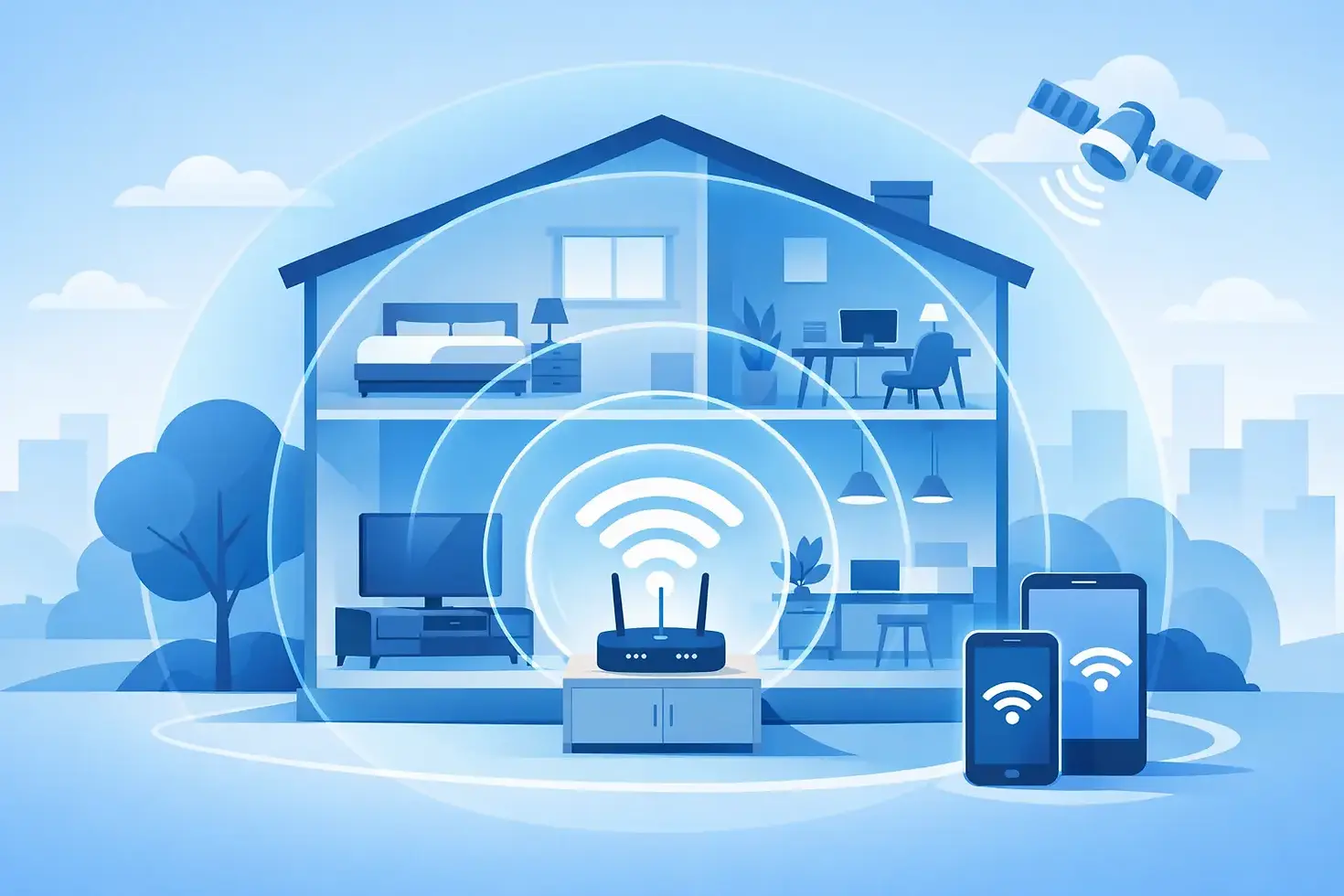
A video call drops the moment you walk into the back bedroom. The game lags when someone starts a 4K movie. Your smart doorbell works sometimes, not always. Those are coverage problems, and they can make even a fast internet plan feel disappointing. The good news? You can improve whole home wifi coverage without turning your house into a technical project.
The right fix depends on your home’s size, layout, building materials, and how many devices compete for bandwidth. A small apartment may need nothing more than better router placement. A two-story home with thick walls, a finished basement, and a home office may be a better match for a mesh WiFi system or wired access points.
Start by Separating Internet Speed From WiFi Coverage
Internet speed is the connection delivered to your home. WiFi is the wireless signal that carries that connection from your router to phones, TVs, laptops, cameras, and gaming consoles. They work together, but they are not the same thing.
If your connection slows down everywhere, including beside the router, your internet plan, modem, network congestion, or equipment could be the issue. If service is excellent in the living room but weak upstairs or in the garage, your plan may be fine. The WiFi signal simply is not reaching where you need it.
That distinction can save you money and frustration. Upgrading from 500 Mbps to 940 Mbps can help a busy household with many simultaneous users, but it will not automatically push a weak signal through brick, concrete, metal, or several floors. Yep, speed matters. Coverage matters too.
Put Your Router Where It Can Actually Work
Routers broadcast outward, so location has a major impact. The common setup - tucked inside a cabinet near the cable outlet - is convenient for hiding equipment but terrible for signal strength.
Place your router in a central, open area whenever possible. A shelf or table at about chest height is usually better than the floor. Keep it away from large metal objects, dense furniture, fish tanks, and enclosed media cabinets. Microwave ovens, cordless phones, baby monitors, and some Bluetooth devices can also create interference, especially on the 2.4 GHz band.
For a two-story home, aim for a central position on the main floor rather than an outside wall at one end of the house. If your internet line enters the building in a poor location, ask whether the equipment can be relocated or whether an Ethernet run is practical. A little planning at installation can prevent years of dead-zone complaints.
Check the Bands Your Devices Are Using
Most current routers use both 2.4 GHz and 5 GHz WiFi. Newer WiFi 6E and WiFi 7 equipment may also use the 6 GHz band. Each has a job.
The 2.4 GHz band generally travels farther and handles obstacles better, but it can be more crowded and slower. The 5 GHz band delivers stronger performance at shorter range, making it a great choice near the router for streaming, video calls, and gaming. The 6 GHz band can offer even cleaner, faster connections for compatible devices, though its range is shorter.
Many routers select the best band automatically. If yours uses separate network names, connect nearby high-demand devices to 5 GHz or 6 GHz and reserve 2.4 GHz for faraway smart devices when needed.
Use a Mesh System for Larger or Awkward Homes
A mesh WiFi system uses multiple coordinated units, often called nodes, to extend coverage across the home. Unlike a basic range extender, a quality mesh system is designed to act as one network. You can move from the kitchen to the upstairs office without manually switching WiFi names.
Mesh is often the best answer for homes with multiple floors, long layouts, detached workspaces, or persistent dead zones. It is also a practical option for families with lots of connected devices: smart TVs, tablets, cameras, speakers, thermostats, consoles, and laptops all add up.
Placement matters here, too. Do not put a mesh node directly inside the dead zone. It needs a strong enough connection to the main router or another node to pass along reliable service. Think of nodes as stepping stones. Put the first one between the router and the trouble area, then test before adding more.
A two-node setup may cover a modest home. Larger homes may need three or more. More units are not automatically better, though. Too many nodes placed too closely can create unnecessary overlap and interference.
Mesh vs. WiFi Extenders
A traditional WiFi extender is usually the lower-cost option for one small weak area. It can make sense if the signal is mostly good and you only need better coverage in a guest room or patio.
The trade-off is performance and convenience. Many extenders rebroadcast the signal, which can reduce available speed, and some create a separate network name. For a house where several rooms struggle, mesh is typically the more reliable long-term choice.
Give Your WiFi a Wired Assist When You Can
Wireless is convenient, but an Ethernet cable remains one of the most dependable tools in home networking. Connecting a stationary device by wire takes traffic off the WiFi network and gives that device a stable connection.
Consider wiring your main streaming TV, gaming console, desktop computer, or work computer if the equipment is nearby. For mesh systems, Ethernet backhaul - wiring the mesh nodes together - can make an especially noticeable difference. Instead of using WiFi to communicate between nodes, they use the cable, leaving more wireless capacity for your devices.
This approach is worth considering for online gaming, home offices, and homes with thick walls. It may require a cable run, but it is often more effective than buying another extender and hoping for the best.
Make Sure Your Equipment Is Not the Bottleneck
An older router may struggle with a modern connected household, even if your internet plan is fast. Signs include frequent disconnects, devices that cannot stay connected, slowdowns when everyone is online, or coverage that never seems to improve no matter where you place the router.
Look for equipment that supports current WiFi standards, especially WiFi 6, WiFi 6E, or WiFi 7 if you have compatible devices and a high-speed fiber plan. These standards are designed to manage multiple devices more efficiently. They do not magically increase the speed of every older phone or TV, but they can improve capacity, reduce congestion, and support newer devices better.
Also keep router firmware updated. Updates can improve security, stability, and performance. Change the default administrator password, use a strong WiFi password, and choose WPA3 security when available. An open or poorly protected network can invite unauthorized users who eat up bandwidth and create bigger problems than a slow movie night.
Test Room by Room Before You Buy More Gear
Walk through your home with a phone or laptop and test service in the places that matter: bedrooms, office, basement, backyard, garage, and the spot where you actually sit for video meetings. Test at different times of day, not just once.
Pay attention to more than download speed. A video call depends on upload speed, low latency, and a stable connection. Gaming is also sensitive to latency. A speed test may look fine while real-time activities still stutter because the signal is inconsistent.
If one room is weak, try moving the router or an existing mesh node before buying anything. If several distant rooms are weak, a mesh setup or wired access point is likely the smarter move. If every room feels slow, review your service speed and the number of people and devices using it at once.
Match Your Internet Plan to the Way You Live
Coverage improvements cannot create bandwidth your household does not have. A single person browsing, streaming, and checking email may be comfortable with a lower speed tier. A household with remote workers, 4K streaming, online gaming, cloud backups, and smart-home devices needs more room to breathe.
Fiber internet can be a strong fit because it supports high speeds and reliable performance for busy households. Plans with unlimited data and no annual contract can also make planning easier, especially when usage changes with school, work, or new devices. At EAS Services LLC, a live expert can check what is available at your address and help separate a coverage issue from a plan issue before you spend money on the wrong fix.
The best home WiFi setup is not necessarily the most expensive one. It is the one that gives your family a dependable signal where life happens - at the desk, on the couch, in the bedroom, and out by the front door. Start with placement, test what is actually weak, and build from there. A few targeted changes can make your whole home feel connected again.


.webp)
Comments